Supported public links
Use links supported by yt-dlp when you own the content, have permission, or are legally allowed to save it.
 PullFrame
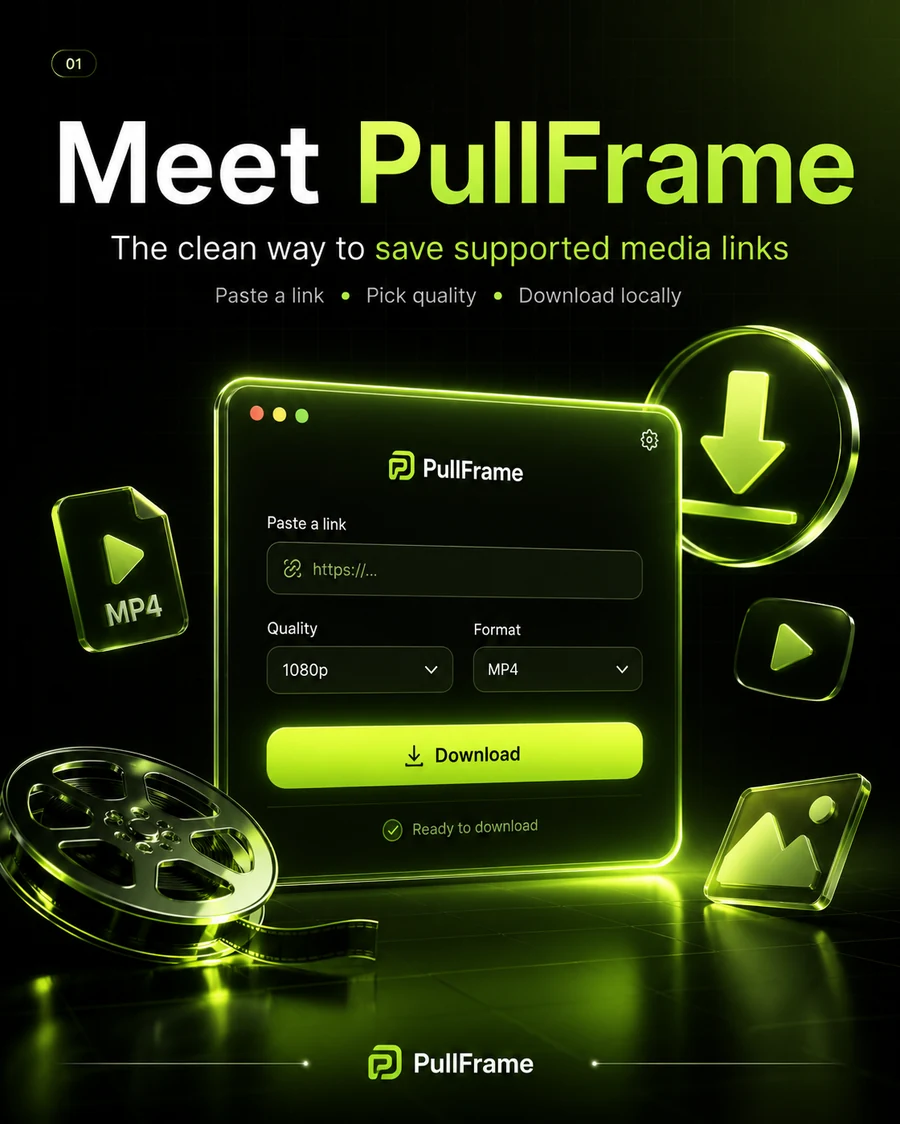
PullFrame turns a command-line media workflow into a polished macOS interface. Paste a link, fetch available options, choose quality and format, then save locally.
First public builds may need manual first-open approval on macOS because PullFrame is not Apple-notarized yet.
What PullFrame does
Use links supported by yt-dlp when you own the content, have permission, or are legally allowed to save it.
Fetch available options and choose the quality that fits your workflow, from best available to smaller files.
Save as MP4, WebM, MP3, or M4A without writing Terminal commands or remembering flags.
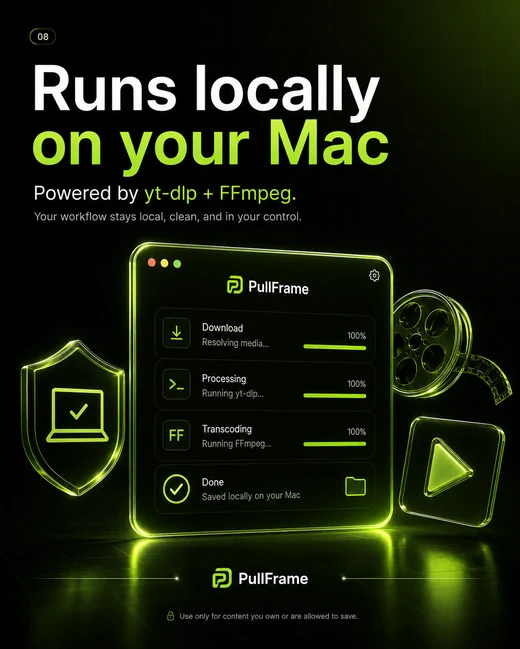
PullFrame uses local yt-dlp and FFmpeg tools, keeping the workflow on your machine.
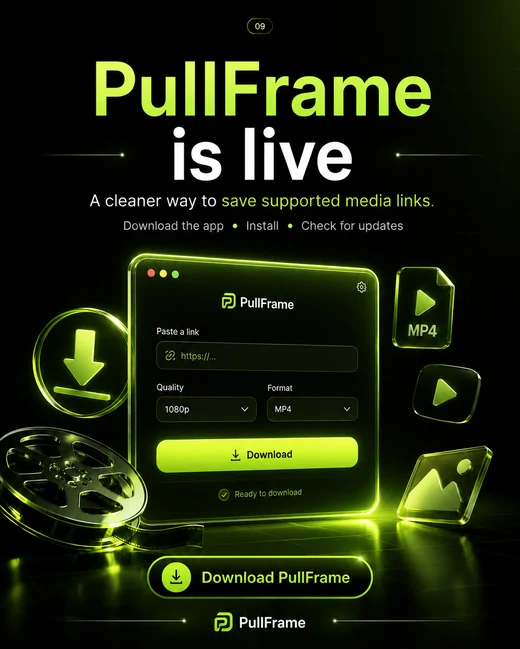
Check GitHub Releases from inside the app and download the newest DMG when a new build is available.
Keep useful records of saved links, filenames, formats, quality choices, and save locations.
Built for normal workflows
PullFrame was made for people who want a focused tool: one clean place to paste a link, choose the output, and save the file. No complex command structure. No noisy interface. Just the controls needed for the job.
Install on macOS
Download PullFrame.dmg
Get the latest build from GitHub Releases.
Open the DMG
The installer window shows PullFrame and Applications.
Drag to Applications
Move PullFrame into your Applications folder.
Open from Applications
Launch PullFrame from Applications after installation.
PullFrame is not Apple-notarized yet. macOS may show a warning the first time you open it.
Recommended: Open Applications, right-click PullFrame, choose Open, then confirm Open.
Alternative: System Settings → Privacy & Security → Open Anyway.
Updates
PullFrame can check for updates from inside the app. When a newer build is available, it opens the latest release page so you can download the new DMG.
About the creator
PullFrame is an independent tool by Abdallah Aboelmagd, a designer and design technologist building practical digital products, AI-assisted workflows, and clean utility interfaces.
Support
For install issues, update questions, or general support, send an email to me@fat7i2017.com.
Use PullFrame only for content you own, have permission to download, or are legally allowed to save.
PullFrame is not affiliated with yt-dlp, FFmpeg, YouTube, Instagram, TikTok, X/Twitter, Vimeo, Facebook, or any supported platform.
A cleaner local workflow for supported media links.